TUI Mode
Run
cn to start an interactive session. You get a prompt where you can type messages, reference files with @, and use slash commands. cn uses the same underlying agent as the Continue IDE extensions.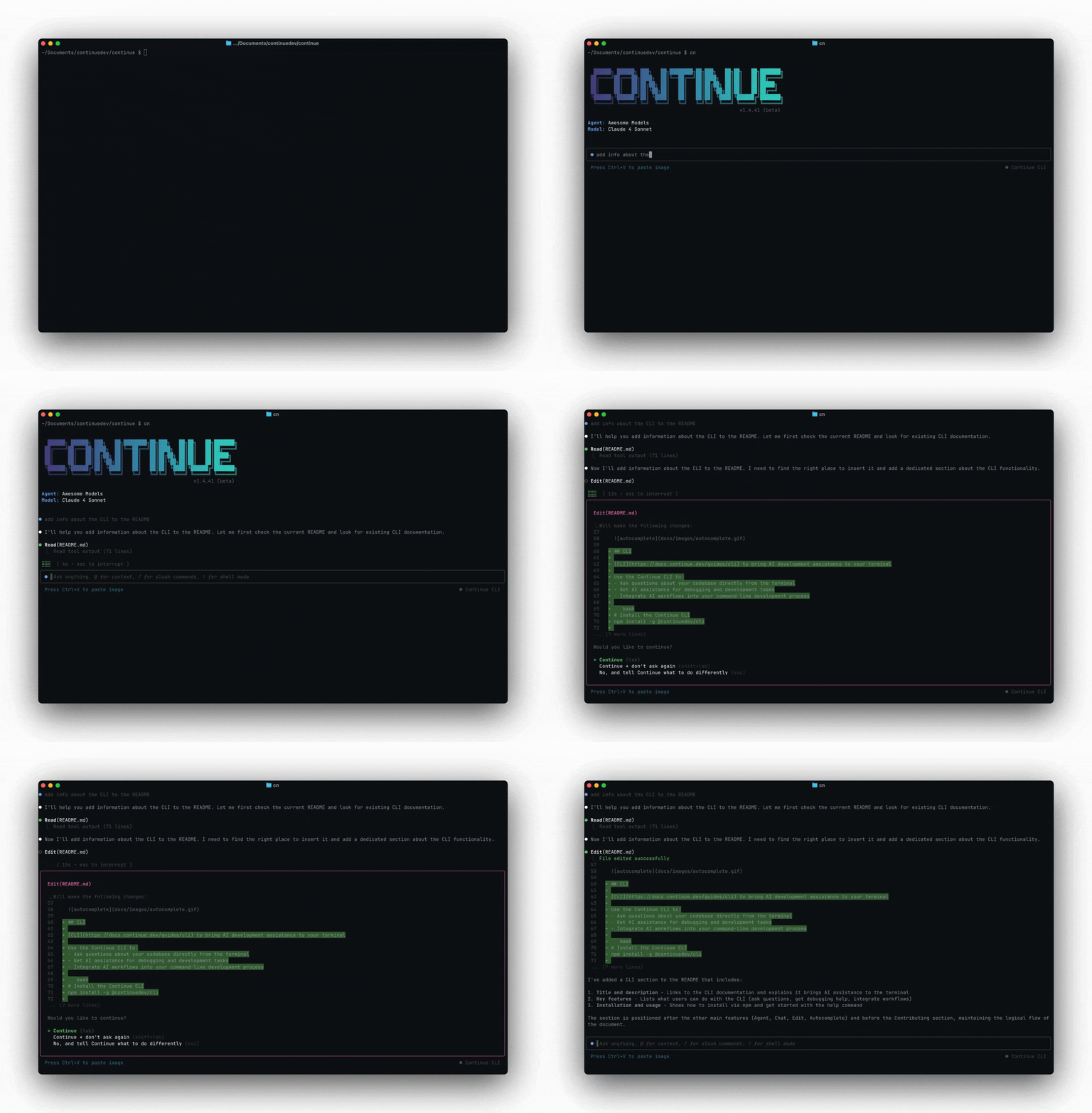
@ Context
Use
@ to point the agent at specific files or directories:> @src/auth/middleware.ts Why is this middleware rejecting valid tokens?
> @tests/ Write missing test cases for the auth module
> @package.json @tsconfig.json Help me set up path aliases
The agent reads the referenced files and uses them as context for its response.
Slash Commands
Type
/ to see available commands. Run /help for the full list.| Command | What it does |
|---|---|
/help | Show the help message and keyboard shortcuts |
/clear | Clear the chat history |
/login | Authenticate with your account |
/logout | Sign out of your current session |
/update | Update the Continue CLI |
/whoami | Check who you're currently logged in as |
/info | Show session information, including token usage and cost |
/model | Switch between configured chat models |
/config | Switch configuration or organization |
/mcp | Manage MCP server connections |
/init | Create an AGENTS.md file for the current project |
/compact | Summarize chat history into a compact form |
/resume | Resume a previous chat session |
/fork | Start a forked chat session from the current history |
/title | Set the title for the current session |
/rename | Rename the current session (alias for /title) |
/exit | Exit the chat |
/jobs | List background jobs |
When you're connected to a remote environment, Continue also adds remote-only slash commands such as
/diff and /apply.Resume previous sessions
Pick up where you left off:
# Resume the most recent session
cn --resume

# Or use the slash command inside a session
> /resume
This restores the full conversation history, so the agent remembers prior context.
Interactive questions in TUI mode
The agent can use the
AskQuestion tool to gather clarifications before it continues. You will see a quiz-style prompt directly in the terminal.- Use ↑/↓ to highlight an option
- Press Enter to submit the highlighted option
- Start typing to send a custom answer (even when options are shown)
- If a default answer is provided, pressing Enter on an empty input submits that default
This is useful when the agent needs decisions like scope, preferences, or environment details before making edits.
Tool Permissions
Tools that can modify your system (file writes, terminal commands) prompt for approval before executing. You get three options:
- Continue — approve this call
- Continue + don't ask again — approve and save a policy rule to
~/.continue/permissions.yaml - No — reject the call and give the agent new instructions
Read-only tools (
Read, List, Search, Fetch, Diff, AskQuestion) run automatically. See tool permissions for the full policy system.